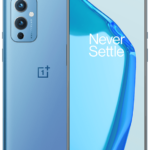
Clone Phone by OnePlus, helps you transfer data quickly to your new smartphone.
What is Clone Phone?
OnePlus has its own migration tool called Clone Phone. With Clone Phone, you transfer contacts, messages, photos, videos, apps, and even call history from your old phone to your new OnePlus or any other Android smartphone. I mentioned Clone Phone briefly in my post about the OnePlus 9. At this stage I’ll give you a complete guide on how it works.

✨ Key Highlights of Clone Phone
- Fast migration: Move contacts, SMS, call logs, calendar, photos, videos, audio, and apps.
- Cross-platform support: Works with both Android and iOS (though iOS transfers require Wi-Fi).
- Backup option: Save contacts, notes, desktop layouts, and apps for easy restore.
- No cables needed: Android transfers can be done wirelessly, while iOS uses QR code pairing.
- User-friendly: Simple steps – connect, choose what to copy, and you’re done.
How to Migrate data to new phone Step by Step
Before you start migrating data, first make sure both phones are charged to a decent level. Just because a phone is brand new doesn’t mean it comes with a 100% charged battery. In fact, most devices ship with only partial charge. E.g. was my new OnePlus 13 only charged to 64%. Moving data can take a while, so keep both phones charged to avoid interruptions.
Next your need to make your new phone ready. In fact, you’ll need to make a number of setup decisions. Most of those choices don’t matter much, since you’ll transfer everything from your old phone anyway. However, you need to connect to a Wi-fi, set your country and language and a lock screen code. The rest you should be able to skip.
- Install or open Clone Phone
- On new OnePlus phones, the app is pre-installed.
- On your old phone (Android or iPhone), download it from the Play Store or App Store.
- Choose the transfer method
- Android → OnePlus: Connect both phones via Wi-Fi (no internet needed).
- iPhone → OnePlus: Connect over Wi-Fi and scan a QR code displayed on your OnePlus device.
- Cable option: You can also connect with a USB cable if preferred.
- Select what to copy
- You can migrate contacts, call history, SMS, calendar events, photos, videos, audio files, apps, and documents.
- For iOS, supported data types may be slightly fewer (e.g., app data is limited).
- Start the transfer
- The app shows progress in real time.
- Once complete, your new OnePlus 13 mirrors much of your old phone’s setup.
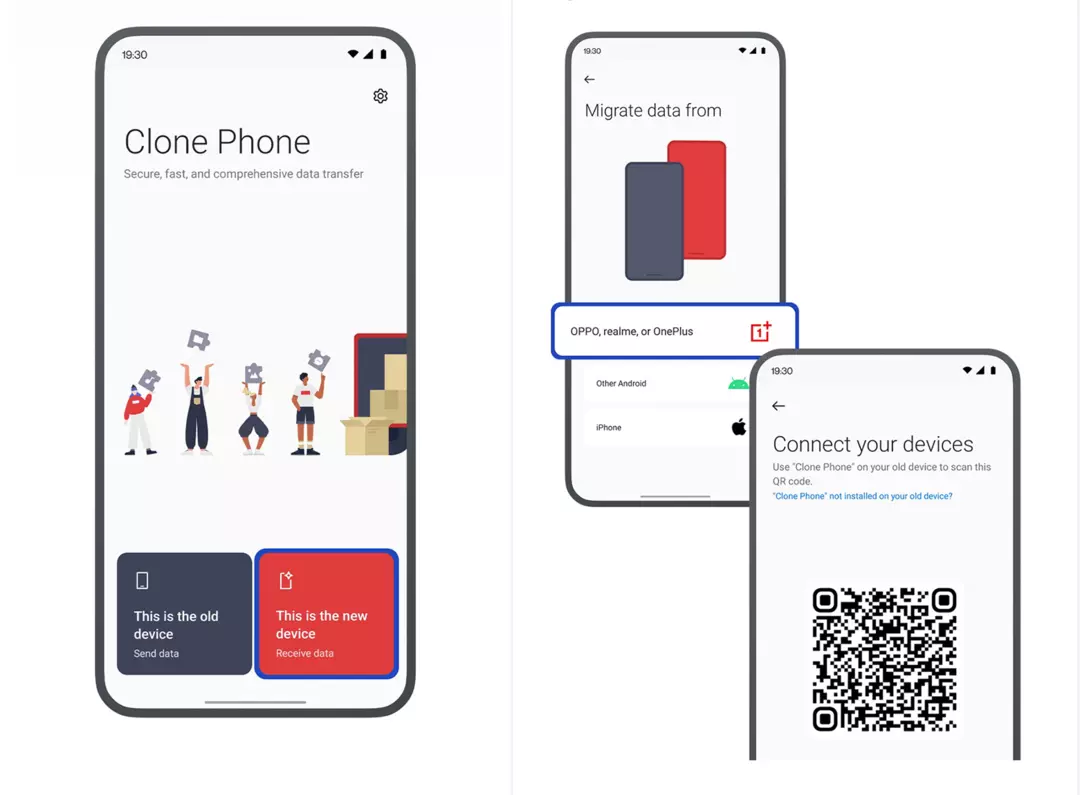
My own migration
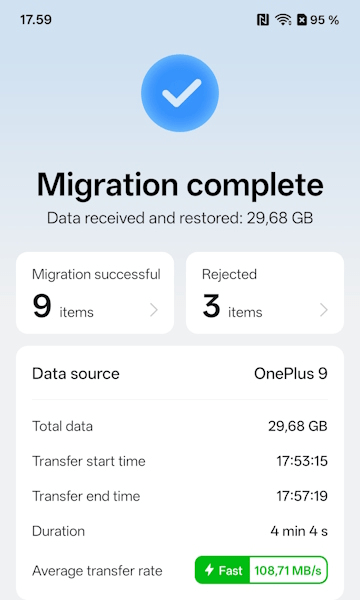
Below you can see the status from my migration from my old OnePlus 9 to my new OnePlus 13. As you can see it transferred almost 30 GB in 4 minutes and 4 seconds. Quite fast over wi-fi if you ask me.
Which data is not part of the clone
Even that most of the data is moved doing the clone, not everything is perfect and ready to use. Clone Phone arranges your apps in the same order as on your old phone..
Here is a list of things I had to setup myself after the clone was done.
- Lock screen and background picture
- Login for apps the first time
- App permissions has to be set again, first time you start an App.
- A few apps didn’t transfer because they were incompatible (Old unsupported apps).
Alternatives to Clone Phone
If you don’t want to use OnePlus’s tool, Google also provides a built‑in option in the newest version of Android.
Go to: Settings -> System & Updates-> Backup & reset ->Backup & migrate
By using Google Backup, you can create a local backup of your phone, after that you can restore it on another device. Be aware that this backup will be synced to your Google account. If you don’t have enough storage there, this is not a solution for you. Default is 15 GB for a free Google Account.
Support
If you need more support about the Clone Phone app, go to the official support site