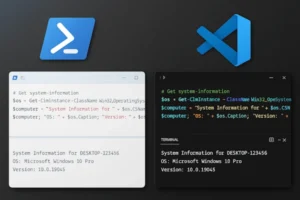
Why Replace PowerShell ISE?
PowerShell 6 and PowerShell 7 changed the landscape for scripting. As a result, PowerShell ISE no longer fits the future of PowerShell development. It served me well for years, but Microsoft stopped adding new features. That said, it’s time to look forward to a new and more powerful tool. In fact, that might have been that for a while. I guess, it just took me a while to admit that it where time to move on.Brief history of PowerShell ISE
Microsoft introduced PowerShell ISE with PowerShell V2, back in 2009. Furthermore, it was redesigned with PowerShell V3. PowerShell ISE is supported in all supported version of Windows PowerShell up to and including Windows PowerShell V5.1. You’ll still find PowerShell ISE, in both Windows 11 and Windows server, but Microsoft no longer develops new features for it. In short, ISE remains useful for legacy Windows PowerShell (up to v5.1), yet it does not support the newer, cross‑platform PowerShell releases.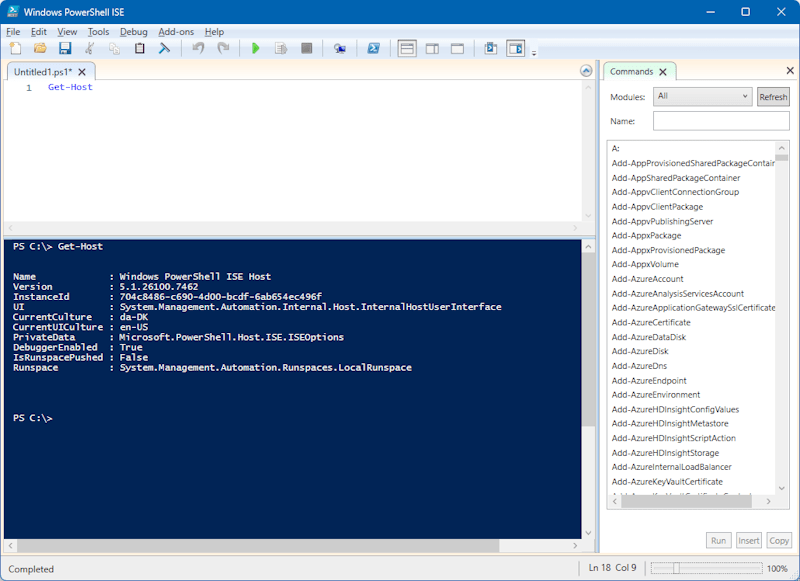
Alternatives to PowerShell ISE
Several editors can replace PowerShell ISE, including Notepad++, PowerShell Studio or PowerShell Plus. However, I have turned to Microsoft Visual Studio Code, that I find are the best tool. First, let me be honest, getting started using Visual Code, wasn’t easy. Visual Studio Code is much more complex, but it has also a lot more features. Consequently, it may take some time to adjust writing PowerShell scripts in Visual Studio Code.Benefits of Visual Studio Code
Visual Studio Code offers a wide range of benefits. For example, here are just a few advantages:- Supports Multiple languages – Handy when your workflow mixes PowerShell with other formats.
- Built-in Git integration – Commit, branch and review changes with out leaving the editor
- Large developer community – Frequent updates and many high‑quality extensions.
- Fast and lightweight – small footprint compared to full IDEs
- High customizability – Allowing you to customize the interface and keyboard shortcuts.
- Regular updates and feature improvements – monthly releases add features and fixes
User Interface of Visual Studio Code
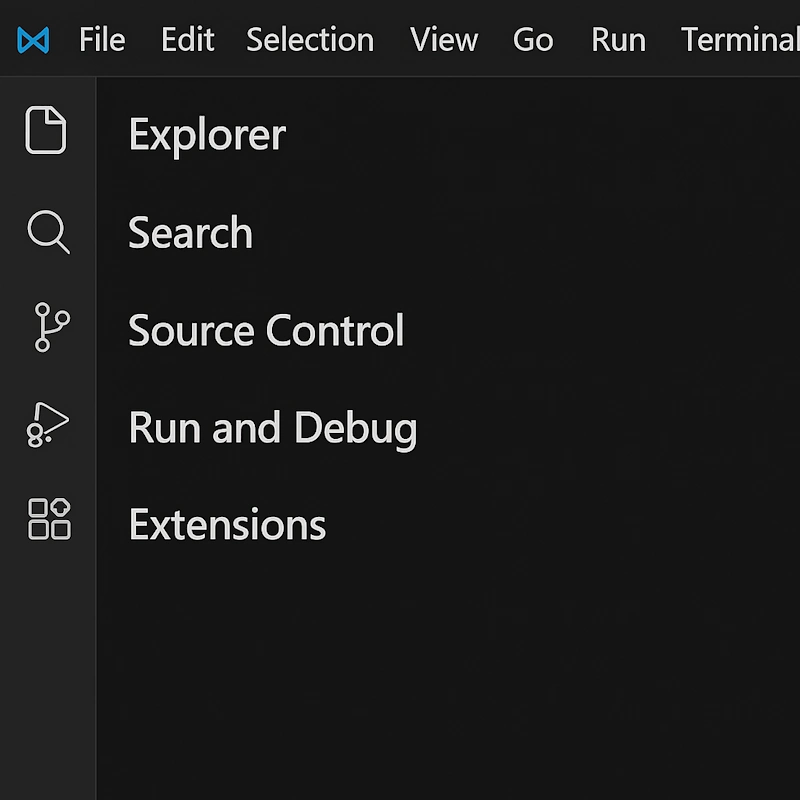
The user interface is a classic editor interface with a menu at the top and a Sidebar to the left. At the side bar you find the most used Tools you will need, when writing scripts. The tools are Explorer, Search, Source control, Run & Debug:- Explorer: This is here your organize your script files and folder. You will start out by selecting a folder where you want to store your scripts.
- Search: Is like you might have guessed where you can search for your script files, but in fact, it also search inside the script. Searching for a command it will return all files where this command is used.
- Source Control: Used with GitHub. If you want to have source control in GitHub for your products. However, this requires, that you install Git for Windows
- Run and Debug: In this Windows you have debug information like breakpoints, Variables, Watches and Call stack.
- Extensions: Here you can search in the Visual Studio Code Marketplace. There is many thousands extensions to pick between.
 Besides the left side bar, there are so many options for customization of the editor. You can select from a large list of color themes, you can download icon themes and setup multiple profiles. Furthermore, you have the options to login with your Microsoft account to sync settings if you work from multiple devices. The options seems endless.
Setting Up VS Code for PowerShell
Once you have downloaded and installed the software you are almost ready to get started. You just need to make sure that you have installed the newest PowerShell version. At this moment of this post, it is PowerShell 7.5.4. At first it might be a bit overwhelming, using Visual Code, compared to the old and simple PowerShell ISE. However, there is some great Getting Started videos at the Official Community. Here you will find 7 short videos, getting your started. All videos are between 3-7 minutes length.Let’s take a quick look at the first video – Getting Started
Next video I believe you should watch, is all about Personalize and Themes:
The Last video I think would be Interesting for a new user is this one about Visual Studio Code Extensions:
How to Install PowerShell Extension in Visual Studio Code
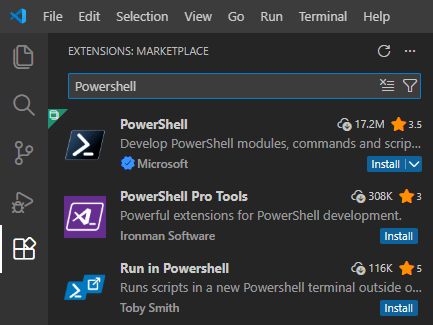
In order to get full support for PowerShell in Visual Studio Code, you should install the PowerShell Extension form Microsoft.- Open Extensions in the Primary Side bar (Ctrl + Shift + X)
- Search for PowerShell and select the extension published by Microsoft.
- Click Install and reload VS Code if prompted.
.ps1 file and try the integrated terminal and debugger to see the difference from ISE.
 Now you are ready to write your PowerShell Scripts in Studio Code.